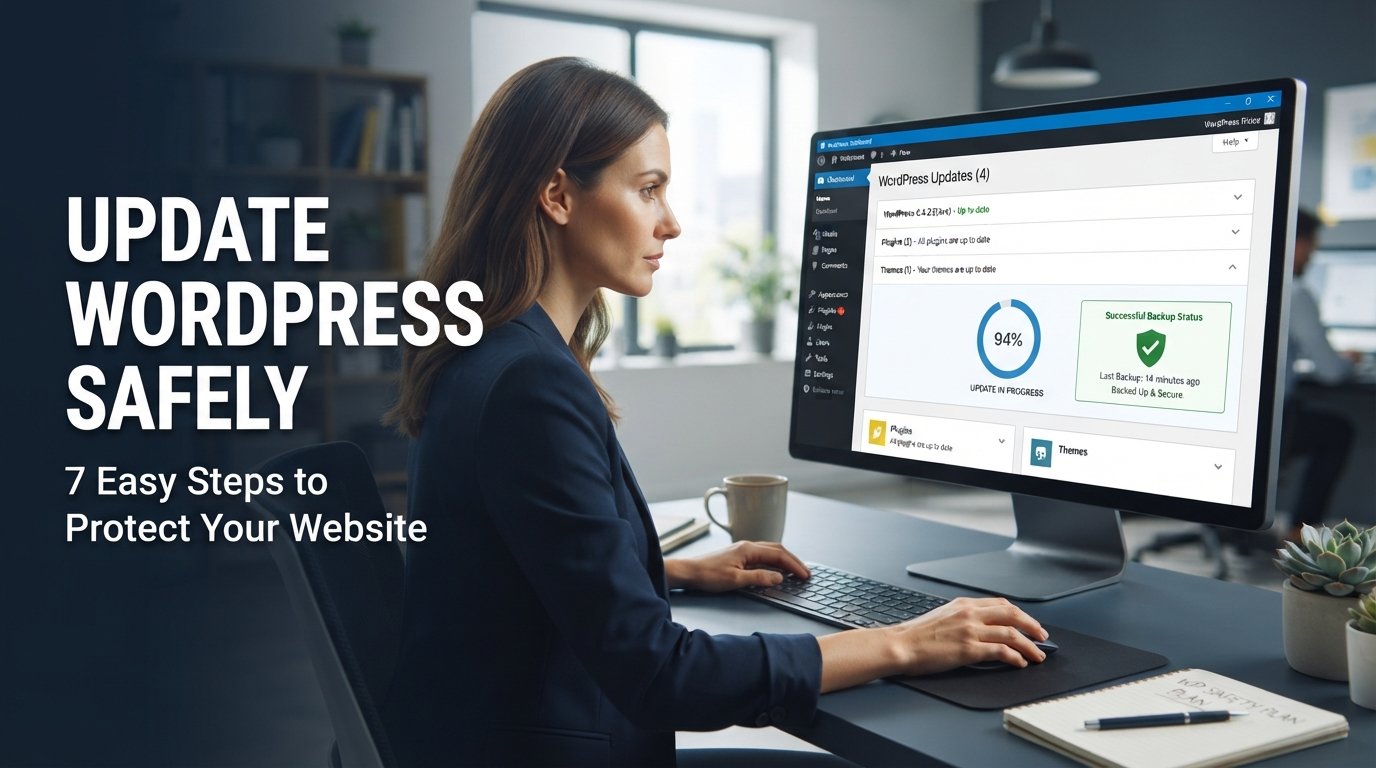
How to Update WordPress Safely: A Step-by-Step Guide
Introduction: How to Update WordPress Safely
Keeping your WordPress website updated is important for security, compatibility, and long-term website maintenance. However, updating WordPress without proper preparation can sometimes cause unexpected problems.
A theme update may affect your website’s design, a plugin update may create compatibility issues, or a WordPress core update may reveal problems with outdated custom code.
The good news is that you can reduce these risks by following a proper update process.
In this guide, you’ll learn how to update WordPress safely, create backups, check plugin compatibility, test updates, and recover your website if something goes wrong.
Why Should You Keep WordPress Updated?
WordPress regularly releases updates to improve its platform and address different technical requirements.
Keeping your website updated offers several benefits.
1. Improve Website Security
Updates can include security fixes that address vulnerabilities in WordPress core, themes, and plugins.
Running outdated software may leave your website exposed to known security problems.
2. Maintain Plugin and Theme Compatibility
Themes and plugins are developed to work with particular WordPress and PHP environments.
Updates can improve compatibility and help prevent problems caused by outdated software.
3. Access New Features
WordPress updates may introduce improvements to the editor, administration dashboard, performance, and other features.
Theme and plugin updates can also provide new functionality.
4. Improve Website Stability
Regular maintenance helps keep your website’s software environment supported and reduces the risk of problems associated with neglected updates.
However, updates should always be tested carefully, especially on business websites and WooCommerce stores.
1. Create a Complete WordPress Backup Before Updating
Creating a backup is the most important preparation step.
If an update causes a problem, a recent backup can help you restore your website.
Your backup should ideally include:
- WordPress website files.
- Themes and plugins.
- Media uploads.
- WordPress configuration files.
- The website database.
There are several ways to create a backup.
Use Your Hosting Provider’s Backup Tool
Many hosting providers offer backup features through their control panels.
If you use Hostinger:
- Log in to your Hostinger account.
- Open hPanel.
- Navigate to the website management area.
- Find the Backups section.
- Review available backup options.
- Create or download a backup if your plan supports it.
The exact options may vary depending on your hosting plan.
Use a WordPress Backup Plugin.
You can also use a backup plugin such as
- UpdraftPlus
- Duplicator
- BackWPup
Review each plugin’s current features, storage options, and restoration process before choosing one.
Important: A backup is only useful if it can be restored. Whenever possible, verify that your backup is complete and keep a copy separate from your hosting account.
2. Check Your WordPress, PHP, and Plugin Versions
Before installing updates, review your website’s current software versions.
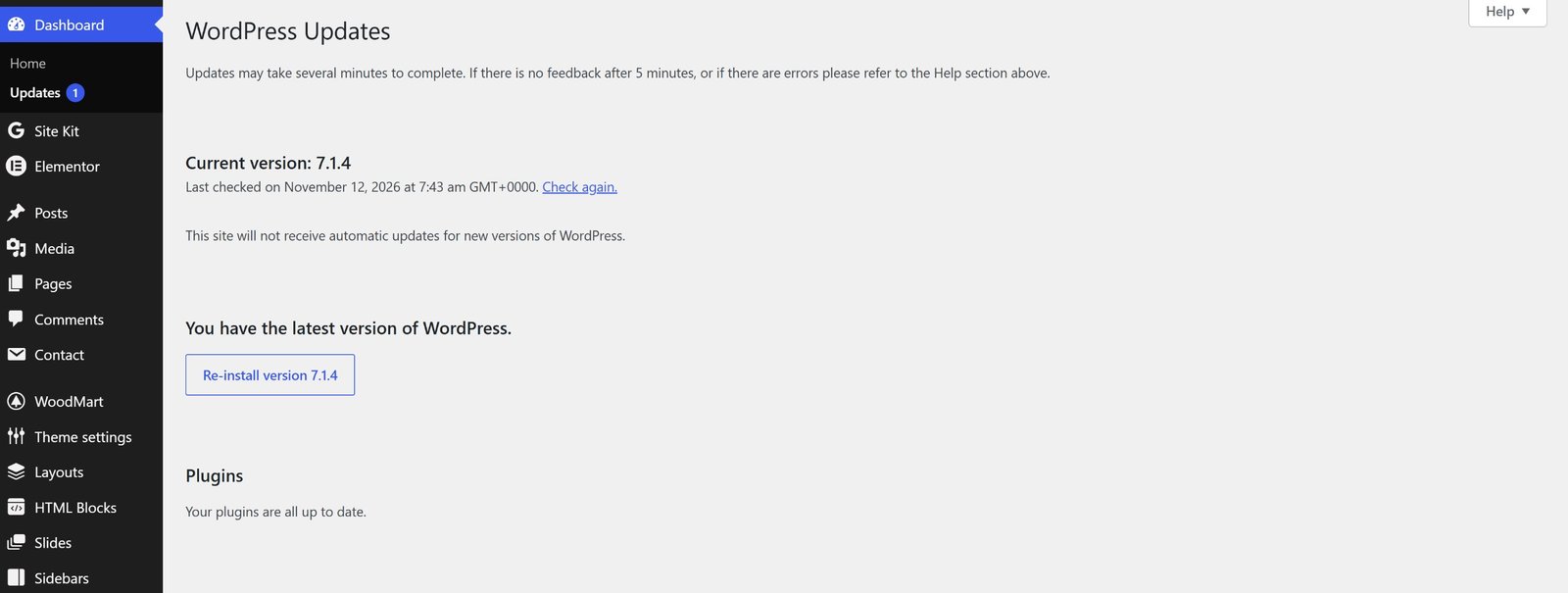
In your WordPress dashboard, open:
Dashboard → Updates
Here you can review available updates for WordPress core, plugins, and themes.
Also check your PHP version through your hosting control panel.
Older PHP versions may be incompatible with newer plugin or theme releases.
Before changing PHP versions, confirm that your active theme and plugins support the version you intend to use.
Do not update PHP and every WordPress component simultaneously without testing. Making one category of changes at a time makes troubleshooting easier.
3. Update WordPress Plugins Carefully
Plugins provide additional functionality, but outdated plugins can create compatibility and security problems.
To update plugins:
- Log in to your WordPress dashboard.
- Go to Dashboard → Updates or Plugins → Installed Plugins.
- Review the available updates.
- Read important update notes when available.
- Create a backup if you have not already done so.
- Update the plugins carefully.
- Check whether your website continues to work correctly.
Avoid updating all plugins blindly on an important live website.
If your website uses payment gateways, booking systems, forms, or membership functionality, test those features after updating.
4. Update Your WordPress Theme Safely
Your WordPress theme controls much of your website’s appearance and layout.
A theme update can sometimes affect custom styling, templates, or modifications.
Before updating:
- Check the theme’s update information.
- Review compatibility requirements.
- Back up your website.
- Check whether you have made custom theme-file modifications.
- Use a child theme for custom code that needs to survive parent-theme updates.
If you use a premium theme such as WoodMart, follow the theme developer’s official update instructions.
Do not replace a theme’s original files manually without understanding the update process.
After updating, check your homepage, navigation menu, header, footer, service pages, and mobile layouts.
5. Update WordPress Core
WordPress core updates can include security fixes, bug fixes, and platform improvements.
Before updating:
- Create a complete backup.
- Check the available WordPress version.
- Review the update information.
- Confirm that your hosting environment meets the requirements.
- Update WordPress using the dashboard when appropriate.
Navigate to:
Dashboard → Updates
Follow the available update instructions.
After the update finishes, log in again if necessary and check whether your website is working correctly.
For major updates, testing on a staging website first is especially useful.
6. Use a Staging Website Before Major Updates
A staging website is a separate testing copy of your live website.
It allows you to test updates without immediately changing the website your visitors use.
This is particularly helpful for:
- WooCommerce stores.
- Business websites with important inquiry forms.
- Websites using premium themes.
- Websites with custom functionality.
- Websites running multiple connected plugins.
A typical staging workflow is
- Create a staging copy through your hosting provider.
- Make sure the staging environment contains the relevant website files and database.
- Apply the planned updates.
- Test important pages and functionality.
- Resolve any compatibility problems.
- Apply the updates to your live website after successful testing.
Be careful when copying staging changes back to a live WooCommerce store. New orders, customer accounts, and other live data may have been created since the staging copy was made.
Do not overwrite live customer or order data with an older staging database.
7. Check Your Website After Updating
Completing an update does not mean the maintenance process is finished.
You should check your website carefully after making changes.
Use this checklist:
Website Appearance
- Does the homepage display correctly?
- Are the header and footer working?
- Are menus and navigation links functioning?
- Are images and page layouts displaying properly?
- Does the website look correct on mobile devices?
Website Functionality
- Do contact forms work?
- Can visitors navigate between pages?
- Do important buttons and links work?
- Are WooCommerce product pages functioning?
- Can customers complete the checkout process?
Technical Checks
- Can you access the WordPress dashboard?
- Are there any PHP errors?
- Are important plugins active?
- Does the website load correctly?
- Are there any unexpected redirects or broken pages?
If you use caching, clear the relevant cache after updates and verify the website again.
8. What to Do If a WordPress Update Breaks Your Website
Sometimes an update can cause an unexpected problem.
For example:
- A page may display incorrectly.
- A plugin may stop working.
- The WordPress dashboard may become inaccessible.
- A website feature may produce an error.
- Your website may display a critical error message.
Follow these steps to investigate.
Step 1: Identify the Problem
Check which component was updated immediately before the issue appeared.
Review your hosting logs and WordPress error information where available.
Step 2: Check Plugin Compatibility
If a plugin update caused the issue, review its documentation and compatibility information.
On a staging website, you can test whether the problem disappears when the affected plugin is disabled.
Do not deactivate essential security, payment, or business functionality on your live website without a safe recovery plan.
Step 3: Restore a Backup if Necessary
If you cannot resolve the issue safely, restore a verified backup.
Remember that restoring a database backup may remove data created after that backup was taken.
For websites receiving orders, bookings, or customer submissions, seek a recovery method that protects new live data.
Step 4: Contact Technical Support
If the issue involves server errors, database problems, or complex plugin conflicts, contact your hosting provider or a WordPress developer.
Avoid making repeated changes without understanding the cause.
WordPress Update Checklist
Before updating your website, use this practical checklist:
- Create a complete website backup.
- Verify that the backup can be restored.
- Review available WordPress updates.
- Check theme and plugin compatibility.
- Review PHP version requirements.
- Test major changes on staging.
- Update WordPress components carefully.
- Check important pages and website functionality.
- Clear relevant caches.
- Monitor the website after updating.
Following a consistent checklist can make WordPress maintenance more organised, and reduce avoidable update problems.
Frequently Asked Questions About How to Update WordPress Safely
1. Should I update WordPress plugins or WordPress core first?
There is no universal order that is best for every website. Review compatibility information and update notes before making changes. On important websites, test the planned updates on staging rather than relying on a fixed update order.
2. Can a WordPress update break my website?
Yes. Compatibility problems, custom code and outdated plugins can sometimes cause issues after an update. Creating a backup and testing major changes on staging can reduce the risk.
3. How often should I update WordPress?
Check for updates regularly and apply security updates promptly after reviewing their relevance and compatibility. The right maintenance schedule depends on your website and the software you use.
4. Do I need a backup before every WordPress update?
A recent, verified backup is strongly recommended before making updates, especially on business websites and online stores.
5. What is a WordPress staging website?
A staging website is a separate copy of your live website used to test updates and changes before applying them to the production website.
6. Should I update WordPress automatically?
Automatic updates can be useful, particularly for routine maintenance and security releases. However, websites with complex customisations or critical functionality should have an appropriate backup, monitoring and testing process.
Final Thoughts
Keeping WordPress updated is an important part of maintaining a secure, reliable and functional website.
However, updating software without preparation can create unnecessary problems.
Always start with a complete backup, review compatibility, test major changes where possible and check your website carefully after every update.
A consistent WordPress maintenance routine can help you avoid unexpected issues and keep your website working smoothly.
Need professional help maintaining your WordPress website?
Umair Digital Solution provides WordPress development and SEO services to help businesses build, maintain and grow their online presence.
Explore our WordPress Development Services and SEO Services to learn more.
One thought on “How to Update WordPress Safely: A Step-by-Step Guide”
Comments are closed.