
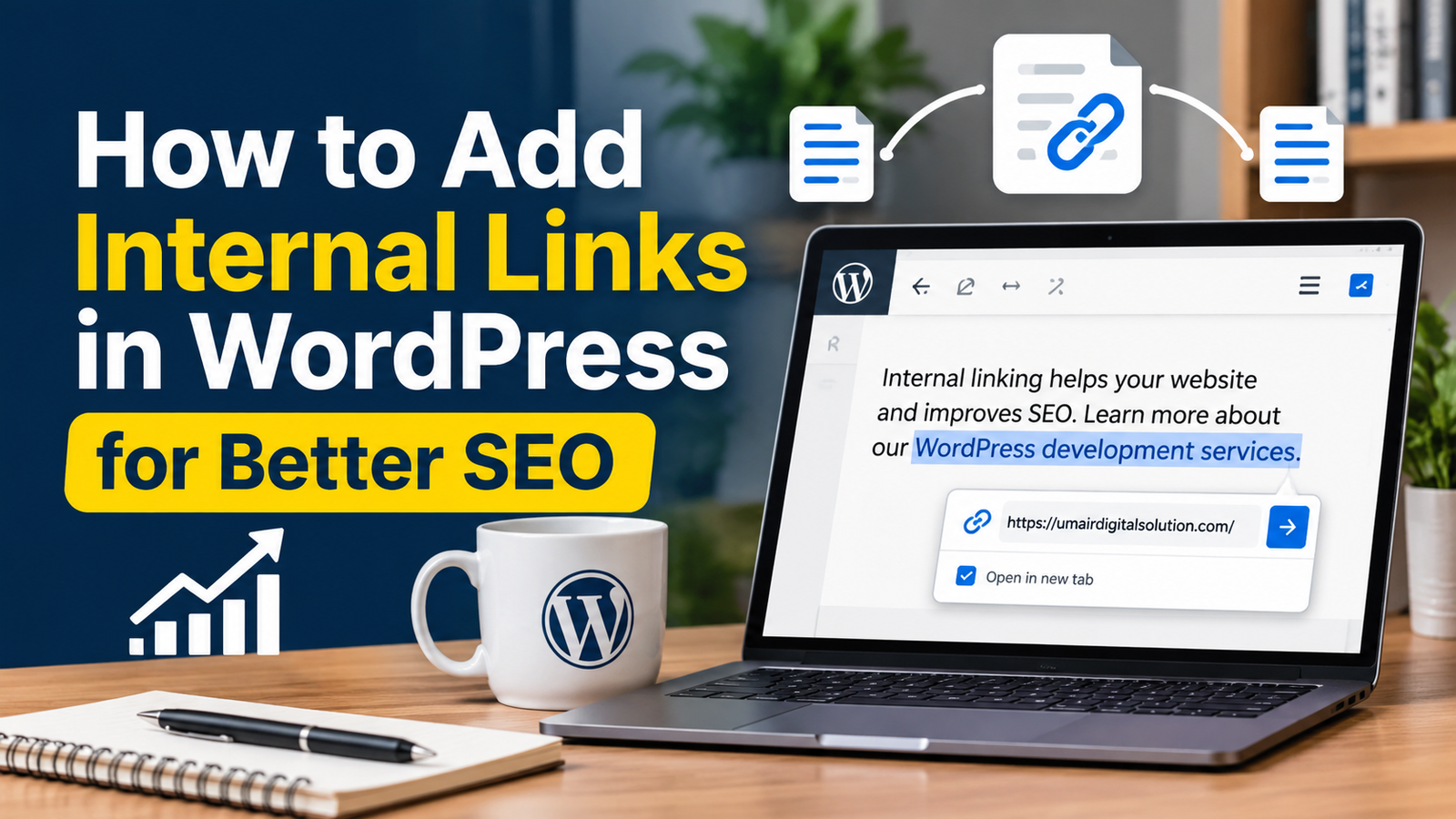
How to Add Internal Links in WordPress for Better SEO
How to Add Internal Links in WordPress for Better SEO
Internal linking is one of the most useful ways to improve your WordPress website’s SEO structure. It helps visitors discover related content, makes website navigation easier and helps search engines understand how your pages are connected.
However, many website owners publish blog posts and service pages without creating a proper internal linking strategy. As a result, important pages may receive fewer internal links, and visitors may struggle to find relevant information.
The good news is that adding internal links in WordPress is straightforward. In this guide, you’ll learn what internal links are, why they matter for SEO, and how to add them correctly using the WordPress editor.
What Are Internal Links?
Internal links are hyperlinks that connect one page or post on your website to another page on the same website.
For example, if you publish an article about WordPress SEO and link to your WordPress development services page, that is an internal link.
Internal links help create relationships between your website’s content.
There are two common types:
- Navigational links: Links found in menus, headers, footers, and other navigation areas.
- Contextual links: Links placed naturally within paragraphs or articles to direct readers to relevant content.
Both types help visitors navigate your website, but contextual links are especially useful for connecting related articles and service pages.
Why Are Internal Links Important for WordPress SEO?
Internal links offer several benefits when used naturally and strategically.
1. Help Search Engines Discover Your Pages
Search engines use links to discover URLs and understand relationships between pages.
When you link to a newly published article from an existing relevant page, you create another route through which search engines may discover that content.
This is particularly useful for websites with multiple blog posts and service pages.
2. Help Search Engines Understand Your Website Structure
Internal links show how different pages relate to one another.
For example, a WordPress website might have:
- A main WordPress development service page.
- An article about WordPress website speed.
- An article about WordPress technical SEO.
- An article about WordPress internal linking.
Connecting these pages helps establish a clearer content structure.
3. Improve User Experience
Visitors often need more information after reading an article.
Instead of making them search through your website, you can provide relevant links directly within the content.
For example, someone reading about website indexing may also want to learn how to configure an XML sitemap.
A relevant internal link makes that next step easier.
4. Help Important Pages Receive More Attention
Internal links can help direct visitors and search engines towards important pages, such as your main services and portfolio pages.
However, adding more links does not automatically improve rankings. Relevance and usefulness matter more than quantity.
How to Add Internal Links in WordPress
You can add internal links directly through the WordPress block editor without installing an additional plugin.
Follow these steps.
Step 1: Open Your WordPress Post or Page
- Log in to your WordPress dashboard.
- Navigate to Posts → All Posts or Pages → All Pages.
- Open the content you want to edit.
- Find a sentence where a related page would genuinely help the reader.
Choose a natural place for your link rather than adding one randomly.
Step 2: Select the Text You Want to Link
Highlight the words or phrase that will become your clickable link.
For example:
“Learn more about our WordPress development services.”
You can select the words “WordPress development services” to use as your anchor text.
Step 3: Insert the Internal Link
- Select the highlighted text.
- Click the link icon in the editor toolbar.
- Paste the URL of the relevant page.
- Press Enter to apply the link.
You can also search for an existing post or page using the link search field in the WordPress editor.
Step 4: Check the Link
After adding the link:
- Preview the post.
- Click the link.
- Confirm that it opens the correct page.
- Check that the destination page is publicly accessible.
Repeat these steps whenever you add relevant internal links.
How to Choose the Right Anchor Text
Anchor text is the visible, clickable text used for a hyperlink.
It provides context about the page being linked to.
Consider these examples:
Good anchor text:
- WordPress development services
- WordPress website speed optimisation
- Technical SEO services
- How to fix a WordPress sitemap
Less useful anchor text:
- Click here
- Read more
- Visit this page
- Learn more
Generic phrases are not always wrong, but descriptive anchor text usually gives readers clearer information about the destination.
Avoid using the exact same keyword-rich anchor text excessively. Write naturally and make sure the linked phrase accurately describes the destination page.
Best Internal Linking Practices for WordPress Websites
Use these practical guidelines to build a better internal linking structure.
1. Link Related Blog Posts Together
Whenever you publish a new article, review your existing content and identify relevant pages that can link to it.
For example:
- An article about Google indexing can link to your sitemap troubleshooting guide.
- An article about sitemap configuration can link to a guide about internal linking.
- An article about WordPress technical SEO can link to your WordPress development services page when relevant.
This creates useful connections between your articles.
2. Link Important Service Pages
Your service pages are important because they explain what your business offers.
Link to relevant service pages from educational articles when the link genuinely helps readers.
For example, a blog post about WordPress website maintenance may naturally link to your WordPress development services page.
Do not force commercial links into every paragraph.
3. Avoid Broken Internal Links
Broken links can frustrate visitors and lead them to pages that no longer exist.
Review your links when:
- You change a page URL.
- You delete an article.
- You move content to another page.
- You redesign your website.
If you change a URL, update internal links pointing to the old address and configure an appropriate redirect when needed.
4. Keep Links Relevant
Do not add internal links simply to increase the number of links on a page.
Every link should provide additional information or help visitors complete a relevant next step.
5. Make Important Pages Easy to Reach
Avoid leaving important pages disconnected from the rest of your website.
Your main services, important guides and portfolio pages should be reachable through sensible navigation and contextual links.
Example: Internal Linking Structure for a WordPress Website
Imagine you operate a WordPress development and SEO agency.
Your website could have the following structure:
Main service page: WordPress Development Services
Supporting blog articles:
- How to Improve WordPress Website Speed
- How to Add Internal Links in WordPress
- How to Fix WordPress Sitemap Problems
- Why Is Your WordPress Page Not Indexed by Google?
Each article can link to the main service page when relevant. The articles can also link to one another when they provide useful additional information.
This creates a connected content structure instead of a collection of isolated blog posts.
Frequently Asked Questions About How to Add Internal Links in WordPress
1. How many internal links should a WordPress blog post have?
There is no fixed number that every article must follow. Add links wherever they provide useful context or help readers find related information.
2. Do internal links help Google index WordPress pages?
Internal links can help Google discover pages and understand how content is connected. However, they do not guarantee indexing.
3. Should internal links open in a new tab?
Usually, internal links can open in the same tab. This provides a more natural navigation experience. Choose the behaviour that makes sense for your website and visitors.
4. Can I link from blog posts to service pages?
Yes. Linking relevant educational articles to service pages is a useful way to connect informational content with your business offerings.
5. Should I use exact-match keywords as anchor text?
You can use descriptive keyword phrases when they fit naturally, but avoid repeatedly forcing exact-match keywords into every link.
6. Do I need a WordPress plugin for internal linking?
No. You can add internal links using the standard WordPress block editor. SEO plugins may provide additional suggestions or tools, but they are not required for basic internal linking.
Final Thoughts
Internal linking is a simple but important part of a well-organised WordPress website.
By connecting related blog posts, service pages and useful resources, you can improve navigation, help search engines discover your content and build a clearer website structure.
Start by reviewing your existing pages, identifying related topics and adding descriptive links where they genuinely help readers.
Remember that successful internal linking is not about adding as many links as possible. It is about creating meaningful connections between your website’s content.
Need help improving your WordPress website?
Umair Digital Solution provides WordPress development and SEO services to help businesses build, optimise and grow their online presence.
Explore our WordPress Development Services and SEO Services to learn more.