

Rank Math Sitemap Not Updating? How to Fix Missing WordPress Posts
Introduction to Rank Math Sitemap Not Updating?
Have you published a new WordPress blog post, but it still doesn’t appear in your XML sitemap? If you use Rank Math SEO, this can be confusing, especially when you expect your newly published content to become available to search engines automatically.
A sitemap helps search engines discover important URLs on your website. Rank Math automatically generates and updates XML sitemaps based on your website’s content and configuration. However, incorrect settings, caching issues, post visibility, or plugin conflicts can sometimes prevent you from seeing the expected URLs.
In this guide, you’ll learn how to troubleshoot a Rank Math sitemap that isn’t updating and how to check whether your newly published WordPress posts are included.
What Is a Rank Math XML Sitemap?
An XML sitemap is a file that lists important URLs on your website to help search engines discover your content.
Rank Math automatically creates XML sitemaps for your WordPress website. These can include:
- Pages
- Blog posts
- Categories and other taxonomies
- Custom post types, depending on your settings
Your sitemap index is usually available at:
https://yourdomain.com/sitemap_index.xml
For example, Umair Digital Solution uses:
https://umairdigitalsolution.com/sitemap_index.xml
The sitemap index links to individual sitemap files. Depending on your configuration, your blog posts may appear in a separate post sitemap.
Important: Being included in an XML sitemap does not guarantee that Google will index a page. A sitemap helps with discovery; Google’s indexing decision is separate.
1. Check Whether Your WordPress Post Is Published
Before changing Rank Math settings, confirm that your blog post is actually published.
Follow these steps:
- Log in to your WordPress dashboard.
- Go to Posts → All Posts.
- Find the blog post you recently created.
- Check its publication status.
- Confirm that it is published and publicly accessible.
A post saved as a draft, private post, or scheduled post may not appear in your public sitemap.
Also, open the post URL in a private browser window to make sure visitors can access it without logging in.
If the post is not published, publish it first and check the sitemap again.
2. Check Rank Math Sitemap Settings
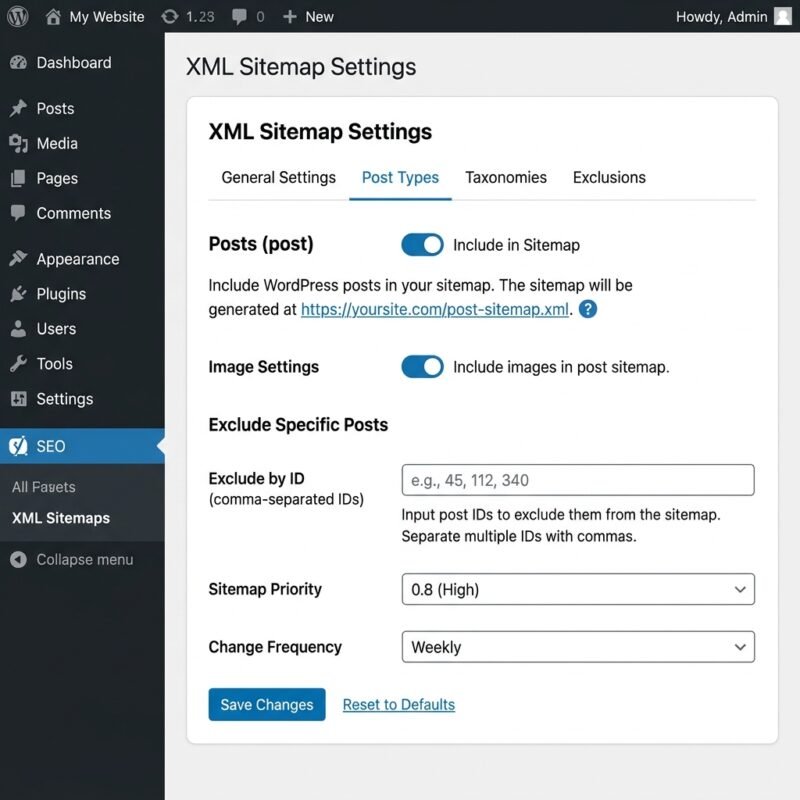
One of the most common reasons for missing content is incorrect sitemap configuration.
To check your settings:
- Log in to your WordPress dashboard.
- Navigate to Rank Math SEO → Sitemap Settings.
- Open the Posts section.
- Make sure the post sitemap is enabled.
- Check that your blog posts are included.
If you have multiple post types on your website, confirm that you are checking the correct content type.
After making any changes, save your settings.
You can then revisit your sitemap index and open the relevant post sitemap.
3. Check the Individual Post’s Robots Settings
Rank Math allows you to configure robots meta settings for individual posts.
If a post is set to noindex, it may be excluded from the sitemap.
To check this:
- Open the post in the WordPress editor.
- Open the Rank Math SEO panel.
- Navigate to the Advanced tab.
- Find the Robots Meta settings.
- Check whether Index is selected.
For a normal public blog article that you want search engines to consider for indexing, its robots settings should generally allow indexing.
Also check the global settings in Rank Math under:
Rank Math SEO → Titles & Meta → Posts
Make sure your post type is not globally configured to use a noindex directive.
Do not change robots settings across your entire website without checking which pages should actually be indexed.
4. Clear WordPress and Hosting Cache
Caching is another possible reason why you may see an outdated sitemap.
Your website may use caching through:
- A WordPress caching plugin
- Hostinger server-side caching
- A CDN such as Cloudflare
- Your browser cache
If a cached version of your sitemap is being displayed, it may not show the latest URLs.
Try the following:
- Open your caching plugin’s settings.
- Clear or purge the website cache.
- If you use Hostinger caching, clear the cache through your hosting control panel or the relevant WordPress integration.
- If you use Cloudflare, purge the relevant cached content when necessary.
- Open your sitemap in a private browser window.
Now check whether the new post appears.
Avoid repeatedly clearing every cache on your website without a reason. Start with the cache layer most likely to be serving the sitemap.
5. Check Your XML Sitemap Manually
After checking the settings and cache, inspect your sitemap directly.
Open:
https://yourdomain.com/sitemap_index.xml
You should see an XML document containing links to the individual sitemap files.
Look for the sitemap containing your blog posts. Its name may vary depending on your website configuration.
Open that sitemap and search for the URL of your newly published article.
For example, if your article URL is:
https://yourdomain.com/example-blog-post
Check whether this exact URL appears in the relevant sitemap.
There are two possible situations:
Situation A: Your post appears in the sitemap
Rank Math is including the post correctly. If Google has not indexed it yet, investigate the page through Google Search Console.
Situation B: Your post does not appear in the sitemap
Review the publication status, Rank Math sitemap settings, robots meta settings, caching and possible plugin conflicts.
This check helps you identify whether the problem is with sitemap generation or Google’s indexing process.
6. Check for Conflicting SEO or Sitemap Plugins
Running multiple plugins that generate XML sitemaps can sometimes create unexpected behaviour.
For example, you might have Rank Math installed alongside another SEO plugin or a separate XML sitemap plugin.
Check your installed plugins:
- Open Plugins → Installed Plugins.
- Review the active SEO and sitemap-related plugins.
- Identify whether another plugin is generating a competing sitemap.
- Review the configuration before disabling anything.
You should generally use one primary SEO plugin to manage your website’s XML sitemap.
If you suspect a plugin conflict, test it carefully on a staging website where possible. Avoid deactivating important plugins on a live business website without a backup and a testing plan.
7. Check Your Sitemap in Google Search Console
Once your sitemap is working, check whether Google Search Console can read it.
Follow these steps:
- Open Google Search Console.
- Select your website property.
- Navigate to Indexing → Sitemaps.
- Enter your sitemap index URL if it has not already been submitted.
- Submit it.
- Review the status and any reported errors.
You can also use URL Inspection to examine your individual blog post.
Enter the complete URL and review the reported indexing information.
If Google has discovered the page but has not indexed it, investigate the specific reason shown in Search Console.
Remember: Submitting a sitemap or requesting indexing does not guarantee that Google will index your content.
Frequently Asked Questions About Rank Math Sitemap Not Updating
1. Does Rank Math automatically update XML sitemaps?
Yes. Rank Math automatically generates and updates XML sitemaps as eligible content is published or changed. However, incorrect settings, caching or other configuration issues can affect what you see.
2. Why is my new WordPress post missing from the sitemap?
Possible reasons include:
- The post is still a draft or private.
- The post type is excluded from the sitemap.
- The individual post has a
noindexsetting. - A cached sitemap is being displayed.
- Another plugin is interfering with sitemap generation.
Check these areas before making major changes to your website.
3. Should I submit my sitemap to Google after every new blog post?
Usually, no. Once Google knows about your sitemap and can access it, Rank Math can update it automatically. Google may revisit the sitemap to discover changes.
You do not need to manually submit the sitemap every time you publish a new article.
4. Does appearing in the sitemap guarantee Google indexing?
No. A sitemap helps Google discover URLs, but it does not guarantee crawling or indexing.
Google evaluates pages independently based on factors such as accessibility, content quality, duplication, and indexing eligibility.
5. How can I check whether my sitemap is working?
Open your sitemap index in a browser and check whether it displays valid XML with links to the relevant sitemap files.
Then open the appropriate post sitemap and confirm that your published article URL appears.
You can also review sitemap processing information in Google Search Console.
Final Thoughts
A Rank Math sitemap that does not appear to update can have several possible causes. Before making major changes, check your WordPress publication status, sitemap settings, individual robots meta settings, and caching configuration.
Once the sitemap is working, use Google Search Console to monitor whether Google discovers and indexes your new content.
A properly configured sitemap is an important part of WordPress technical SEO, but it works alongside other elements such as internal linking, accessible pages, and useful original content.
Need help with your WordPress website or technical SEO?
Umair Digital Solution provides WordPress development and SEO services to help businesses improve their websites and build a stronger online presence.
Explore our WordPress Development Services or SEO Services to learn more.