How to Fix a Slow WordPress Website: 10 Easy Ways to Improve Speed
Introduction to Fix a Slow WordPress Website
Is your WordPress website taking too long to load? A slow website can frustrate visitors, affect user experience, and make it harder for people to explore your services or products.
WordPress websites can become slow for several reasons, including poorly optimised plugins, heavy themes, large images, excessive scripts, caching problems, and limited hosting resources.
The good news is that you don’t always need to rebuild your website to improve its performance. By identifying the main cause and applying the right optimisation techniques, you can make your WordPress website faster and more efficient.
In this guide, you’ll learn how to identify common WordPress speed problems and follow practical steps to improve your website’s loading performance.
Why Is Your WordPress Website Slow?
Before making changes, it’s important to understand what might be causing the problem.
Some common reasons include:
- Too many plugins or poorly performing plugins.
- Large, unoptimized images.
- An outdated or poorly configured theme.
- Excessive JavaScript and CSS files.
- No effective caching system.
- Slow web hosting or insufficient server resources.
- External scripts from advertising, tracking, or other services.
- An inefficient database or excessive background tasks.
Not every slow website has the same problem. That’s why testing your website before changing its settings is important.
1. Test Your WordPress Website Speed
The first step is to measure your website’s performance.
You can use free tools to identify potential problems.
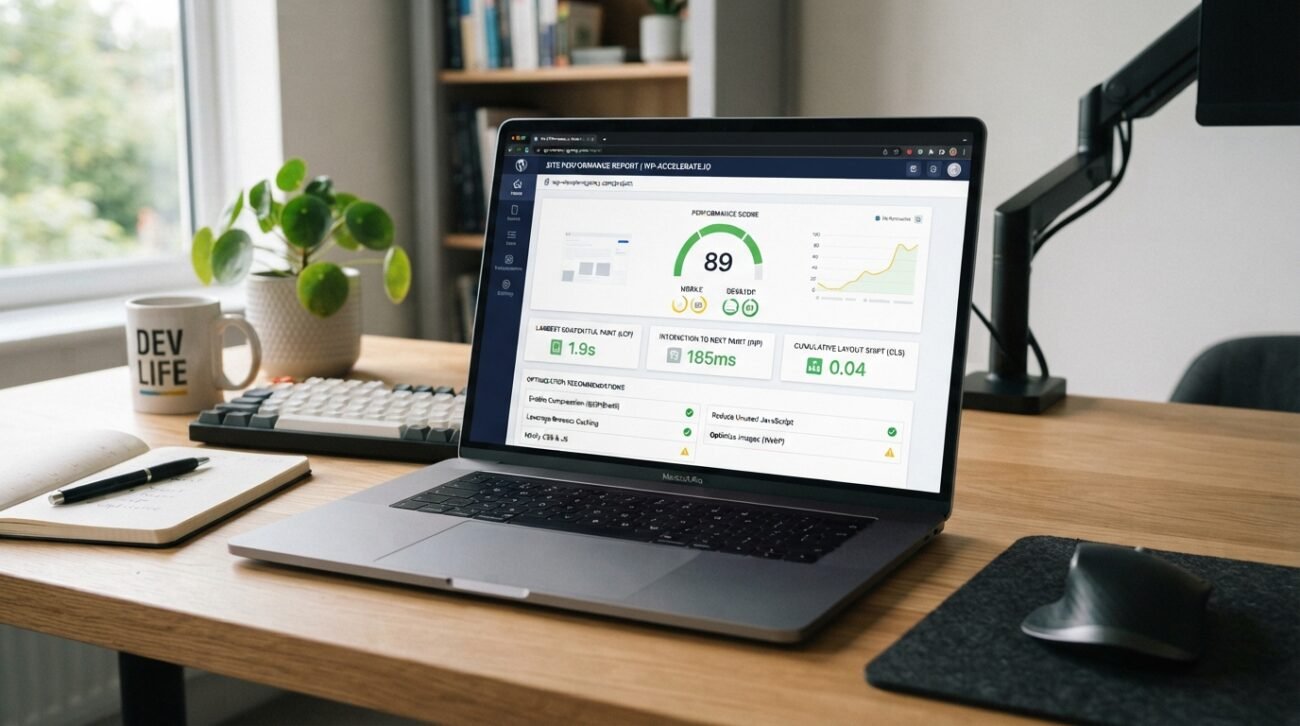
Google PageSpeed Insights
Visit Google PageSpeed Insights and enter your website URL.
The tool provides performance reports for mobile and desktop devices.
Pay attention to:
- Largest Contentful Paint (LCP).
- Interaction to Next Paint (INP).
- Cumulative Layout Shift (CLS).
- Image optimisation recommendations.
- Render-blocking resources.
- Unused JavaScript and CSS.
These measurements help you understand how visitors experience your website.
Google Chrome Lighthouse
You can also use Lighthouse through Chrome Developer Tools to review page performance and identify opportunities for improvement.
Tip: Test important pages individually. Your homepage may perform differently from your blog posts, service pages or WooCommerce product pages.
Record your initial results before making changes. This will help you compare performance after optimisation.
2. Review Your WordPress Plugins
Plugins add useful functionality to WordPress, but some can introduce additional scripts, database queries or background processes.
Having many plugins does not automatically make a website slow. The impact depends on what each plugin does and how efficiently it works.
To review your plugins:
- Log in to your WordPress dashboard.
- Navigate to Plugins → Installed Plugins.
- Review your active plugins.
- Identify plugins that provide duplicate or unnecessary functionality.
- Check whether any plugins are outdated or no longer maintained.
- Review their performance impact before deciding what to change.
Avoid installing several plugins that perform the same task.
For example, you may not need multiple plugins for caching, image optimisation or security if one suitable solution already provides those features.
Important: Do not deactivate plugins randomly on a live website. Some plugins may control important features such as forms, payments, security or customer accounts. Test changes on a staging website whenever possible.
3. Use a Lightweight WordPress Theme
Your WordPress theme affects how your website displays content and loads its assets.
Some themes include extensive design features, animations, scripts and additional functionality. If these features are not configured carefully, they may increase page complexity.
When choosing or configuring a theme:
- Use only the features you actually need.
- Avoid unnecessary animations and visual effects.
- Remove unused widgets and elements.
- Keep your theme updated.
- Use a child theme when making custom code changes that must survive theme updates.
If you use a multipurpose theme, focus on enabling only the components required by your website.
A visually attractive website should also be practical, responsive and efficient.
4. Optimise Your Images
Images are often an important part of a website’s total page weight.
Large photographs and oversized graphics can increase loading time, especially on mobile devices.
Follow these image optimisation practices:
- Resize images to suitable display dimensions.
- Compress images before uploading.
- Use WebP where appropriate.
- Add descriptive filenames and useful alt text.
- Avoid uploading unnecessarily large images.
- Use lazy loading for suitable images below the visible area.
Be careful with your main hero image. Delaying the loading of the largest above-the-fold image can negatively affect LCP.
5. Enable Proper WordPress Caching
Caching helps reduce repeated work when visitors request your website.
Without suitable caching, WordPress may need to process many requests repeatedly. Depending on your setup, caching can reduce server workload and improve response times.
There are different types of caching:
- Page caching.
- Browser caching.
- Object caching.
- Server-level caching.
Your hosting provider may already offer caching features.
If you’re using Hostinger, review the caching options available through your hosting account and WordPress integration.
You can also consider a compatible caching plugin, depending on your hosting environment.
Before enabling multiple caching systems, check whether they overlap or conflict.
After making changes, clear the relevant cache and test your website again.
6. Reduce Unnecessary JavaScript and CSS
WordPress themes, page builders and plugins may load JavaScript and CSS files to provide different features.
Some pages may load resources that are not required for their visible content.
This can increase the amount of work the browser needs to perform.
You can investigate this by:
- Running your page through PageSpeed Insights.
- Reviewing recommendations related to unused JavaScript and CSS.
- Identifying which theme or plugin is loading the resources.
- Checking whether those resources are actually required.
- Testing suitable optimisation settings.
Some optimisation tools offer features such as:
- CSS minification.
- JavaScript minification.
- CSS delivery optimisation.
- JavaScript delay or defer.
- Unused CSS removal.
However, these settings can affect how your website works.
For example, aggressive JavaScript optimisation may break navigation menus, sliders, forms or Elementor widgets.
Apply one change at a time and test your website after each change.
7. Improve Your WordPress Hosting Performance
Your hosting environment plays an important role in website speed.
Even a well-optimized WordPress website can experience performance problems if its server resources are insufficient or poorly configured.
Consider the following:
- Is your hosting plan suitable for your website’s traffic?
- Is your server response time consistently slow?
- Are you using a supported PHP version?
- Is your database responding efficiently?
- Are there server resource limits?
- Does your hosting provider offer suitable caching?
If your website regularly reaches resource limits, you may need to review your hosting plan or speak with your hosting provider.
Before upgrading, investigate the actual bottleneck. More expensive hosting is not automatically the solution to every speed problem.
8. Use a Content Delivery Network When Appropriate
A Content Delivery Network (CDN) distributes certain website resources through servers located in different geographical regions.
This can help visitors receive static resources such as images, CSS, and JavaScript from a location closer to them.
For example, if your target audience is in the United Kingdom but your origin server is located elsewhere, a suitable CDN may help deliver static content more efficiently.
Popular CDN options include:
- Cloudflare.
- Other CDN services supported by your hosting provider.
A CDN is not a replacement for proper WordPress optimisation. You should still optimise your images, caching and website code.
After configuring a CDN, verify that your pages, images, forms, and other important features continue to work correctly.
9. Keep WordPress, Themes, and Plugins Updated
Outdated software can create security, compatibility, and maintenance problems.
Updates may also include performance improvements and bug fixes.
Make sure you regularly review updates for:
- WordPress core.
- Your active theme.
- Installed plugins.
- PHP compatibility.
Before updating a business website:
- Create a complete backup.
- Review update information.
- Test important functionality on staging when possible.
- Apply updates carefully.
- Check the live website afterwards.
Do not update everything blindly without a backup, particularly when your website uses custom code or important WooCommerce functionality.
10. Monitor Your Website Performance Regularly
Website optimisation is not a one-time task.
A new plugin, theme update, page builder widget or tracking script can change performance over time.
Create a simple monitoring routine:
- Test your homepage.
- Test important service pages.
- Check your latest blog posts.
- Review mobile performance.
- Monitor Core Web Vitals in Google Search Console.
- Investigate noticeable performance changes.
Keep a record of your results so you can identify whether your optimisation work is making a difference.
Common WordPress Speed Optimisation Mistakes
Avoid these common mistakes when trying to improve website speed:
- Installing multiple caching plugins without understanding their interaction.
- Deactivating important plugins without testing.
- Compressing images so aggressively that quality becomes poor.
- Lazy-loading the main hero image without checking LCP.
- Enabling every optimisation setting at once.
- Choosing hosting upgrades without identifying the actual bottleneck.
- Ignoring mobile performance.
- Treating a perfect PageSpeed score as the only measure of success.
The best approach is to identify the main performance problem, make controlled changes and test the results.
Frequently Asked Questions About Fix a Slow WordPress Website
1. Why is my WordPress website suddenly slow?
A website may become slow after installing a plugin, updating a theme, adding large images or introducing new scripts. Hosting resource limits and caching problems can also contribute.
Test the affected pages and review recent changes to narrow down the cause.
2. Do too many WordPress plugins slow down a website?
Not necessarily. The number of plugins alone does not determine performance. Their functionality, code quality and resource usage are more important.
3. Which plugin is best for WordPress speed optimisation?
There is no single best plugin for every website. The right choice depends on your hosting environment, theme, page builder and existing optimisation setup.
Avoid using multiple tools that perform overlapping caching or optimisation tasks.
4. Does caching improve WordPress website speed?
Caching can improve performance by reducing repeated processing and serving stored content more efficiently. The results depend on your website configuration and hosting environment.
5. Does website speed affect SEO?
Website performance contributes to user experience. Google uses Core Web Vitals as part of its page experience signals, but good scores alone do not guarantee higher rankings.
Relevant, useful content and overall search quality remain important.
6. How can I test my WordPress website speed for free?
You can use Google PageSpeed Insights and Chrome Lighthouse. Both provide useful performance information and recommendations.
Final Thoughts
A fix a slow WordPress website can have several causes, so effective optimisation starts with proper testing.
Review your plugins, theme, images, caching, scripts and hosting environment before making major changes.
Focus on the improvements that address your website’s actual performance problems rather than installing multiple optimisation tools without a clear plan.
By monitoring performance regularly and making controlled improvements, you can create a faster and more reliable experience for your visitors.
Need help improving your WordPress website speed?
Umair Digital Solution provides WordPress development and SEO services to help businesses build, optimise and grow their online presence.
Explore our WordPress Development Services and SEO Services to learn more.