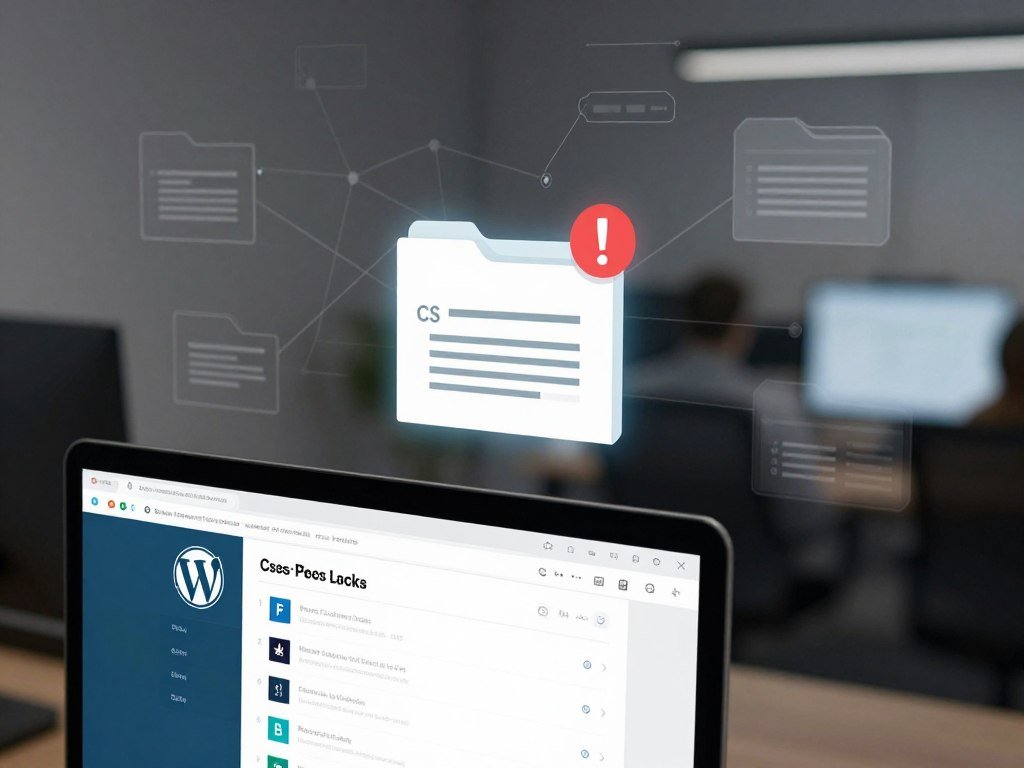
Google is not crawling CSS and JavaScript
Remove restrictions on Google not crawling CSS and JavaScript resources Google needs, starting with robots.txt and then checking other access controls. The page after JavaScript runs is called rendered HTML: it is the page markup produced after a browser executes its JavaScript.
Your WordPress site may look normal in your browser while Googlebot cannot fetch the files that shape its pages. A blocked stylesheet can change the layout Google sees, while blocked scripts can hide content or links.
A warning about blocked resources does not, by itself, mean your site has lost rankings. It means you should check whether Google can see the parts of your public pages that matter for SEO.
This guide explains how to check a page, find the access rule, and test a change. You will also learn what to check when robots.txt is not the cause.
Treat the warning as a prompt to investigate, not proof that your site has been penalised.
Why Does Google Need Access to CSS and JavaScript?
Google needs the files a page depends on so it can render the page before using the rendered result for indexing. Googlebot access to CSS and JavaScript helps Google understand a page’s layout and content.
Google processes JavaScript pages in three phases: crawling, rendering and indexing. During rendering, headless Chromium runs the page’s JavaScript and creates rendered HTML.
A page may wait in the rendering queue for a few seconds or longer. Google uses its rendered HTML to index the page and find links to queue for crawling.
That matters when JavaScript adds page content or links, or when CSS changes the visual layout. If a required resource cannot load, Google may see a different page from the one in your browser.
| Phase | What Google does | What it uses or produces |
| Crawling | Fetches the page and its permitted resources | Page URL and crawlable files |
| Rendering | Runs JavaScript in headless Chromium | Rendered HTML |
| Indexing | Reviews the rendered page for search | Content and links for Google Search |
A page that loads well for you may still show Google different text, links, or layout. A browser view alone cannot confirm what Google receives after rendering.
How Can You Check Whether Googlebot Is Blocked?
Start by inspecting a page that shows the problem, because an individual URL test can reveal a blocked resource that an aggregate report cannot identify. Test the affected URL before changing files or settings.
URL inspection can show whether Googlebot can fetch a page and its key resources. Crawl Stats adds site-wide patterns but cannot confirm access for one particular page.
Inspect a page with URL Inspection.
Open Google Search Console and choose the property that contains the affected page. Enter its full URL in URL Inspection, then run the live test.
Review the test details and rendered output for blocked or failed resources. Note the resource URL and any access or fetch issue shown, including whether a CSS or JavaScript file failed.
Use this separate checklist to keep the test focused:
- Confirm that you selected the correct Search Console property.
- Inspect the URL of the affected page.
- Record each blocked resource detail.
- Check the CSS and JavaScript request pattern.
Use Crawl Stats for site-wide patterns.

Crawl Stats covers the last 90 days and is available for Domain properties and root-level URL-prefix properties, not folder-level properties. It groups requests by file type, including JavaScript and CSS.
The report’s response-time data includes requests for scripts and stylesheets, not just HTML pages. Crawl Stats request groups can help you spot a wider change in CSS or JavaScript fetching.
| Check | What it helps you see | Limit |
| URL Inspection | Live test and page resource status | Tests one URL at a time |
| Crawl Stats | CSS, JavaScript, and response-time patterns | Does not test one page’s assets |
| Public robots.txt URL | Rules served from the site root | Does not show every access control |
Opening the site’s robots.txt URL in a browser shows its public contents. It does not prove that every resource can load through other controls. Use Crawl Stats as a pattern check, not as proof that a particular page’s assets are accessible.
Google Not Crawling CSS and JavaScript on WordPress: Where Should You Start?
A disallow rule in robots.txt can stop Googlebot before it even makes an HTTP request for the blocked URL. Check the resource path against the rules in the robots.txt file.
Broad rules for /wp-content/ or /wp-includes/ can block CSS files and JavaScript files needed to render WordPress pages. Look for disallow rules covering those paths, or specific CSS and JavaScript folders.
Before fetching a URL, Googlebot checks robots.txt. If the URL is disallowed, Googlebot skips the request, and Google Search does not render JavaScript from blocked files or pages.
This is different from a robots meta tag. Google can read that setting only when it can crawl the page that contains it. A noindex tag tells search engines not to show that HTML page in search results.
Blocking a crawl and removing a URL from search results are not the same action. A blocked page may still appear in results if Google finds its URL elsewhere, since the crawler cannot read a noindex directive on that page.
Look for robots .txt rules that restrict access to CSS paths, not only page URLs. A robots .txt file should not be treated as a page-level noindex setting. Broad WordPress path blocks can prevent Googlebot access to CSS and scripts that pages need. Check whether a rule blocks the resource URL itself, rather than assuming a page-level noindex setting is the cause.
How Do You Find and Edit the WordPress robots.txt File?
WordPress may serve a virtual robots.txt file even when you cannot find a physical file in the site root. Check the public version to learn which rules are active.
A physical file in the root folder takes the place of WordPress’s virtual file. When no physical file exists there, WordPress can create a virtual one, usually disallowing /wp-admin/ while allowing admin-ajax.php.
Find the physical or virtual file.
Open your site’s robots.txt URL in a browser to see the public rules. If a physical txt file exists in the site root, edit it through your hosting file manager or FTP.
Some SEO plugins also offer a robots.txt editor. Check whether the editor changes a physical file or WordPress’s virtual output, so you know which version visitors and crawlers receive.
The WordPress setting under Dashboard → Settings → Reading can discourage search engines from indexing the site. That setting controls indexing, not whether individual CSS or JavaScript resources can be fetched.
Make a targeted change and check it.
Back up the current rules before editing robots. Change only the directive that conflicts with the access you need, then save the file or plugin setting.
Use this four-step check after editing robots:
- Back up the current rules.
- Make one targeted edit.
- Save the change.
- Verify the live file.
Open the public robots.txt URL again after saving. Confirm that the intended rule appears and that no other rule has changed by mistake.
If you cannot edit a physical file, check your hosting file manager and plugin settings before creating another file. Two competing versions can make editing robots confusing. Confirm that the live robots.txt contains the intended change before testing Google’s access again.
What if robots.txt Is Not Blocking the Files?
If robots.txt allows a resource but Googlebot still cannot fetch it, inspect the controls that sit between the crawler and the file. Check each control in turn, and treat a setting as a possible cause until you confirm it.
Security tools, optimization settings, firewalls, and server rules can each affect access to static files. A failed request points to a problem but does not name the control that caused it.
Review security and optimisation plugins
Check security plugin settings for bot restrictions, blocked request patterns, or rules that limit access to files. Wordfence and iThemes Security are examples of plugins to review, not confirmed causes.
Optimisation plugins can change how CSS and JavaScript load. Check settings that combine, delay, or defer files if a page’s rendered output is missing content or styling.
WP Rocket, LiteSpeed and Autoptimize are examples of optimisation plugins to inspect. Their presence alone does not show that they block Googlebot crawl requests.
After changing a relevant setting, clear that plugin’s cache and any page cache it controls. Retest the same resource so you can see whether the response changes.
Check CDN and firewall rules
Review your CDN or firewall’s bot challenges, access rules, and logs for the resource URL. Cloudflare and Sucuri are examples of services to check, not proof of a block.
Look for a 403 response or another failed response when Googlebot requests a CSS or JavaScript file. Compare the rule and request details before changing anything.
A browser may receive a normal response while a crawler receives a challenge or denial. Do not assume a CDN or firewall blocks Googlebot by default; confirm the result for the affected request.
Ask your host about server restrictions
Ask your host whether a server firewall An htaccess rule or file permission stops Googlebot from fetching static resources. The root .htaccess file can contain security rules outside WordPress.
Give the host the affected resource URL and the failed response details. Ask whether the server applies different rules to crawlers or limits access to that file type.
If a resource still fails, check whether its file permissions allow public requests. Avoid changing permissions broadly; ask the host to identify the exact rule or permission involved.
Keep a note of each setting you change and the result of its test. Change one access control at a time so you can identify which adjustment resolves the failed request.
How Do You Retest After Making a Fix?
Retest the live URL after each fix rather than relying on the browser view or a saved configuration. Use a fresh live test in Google Search Console to check the result Googlebot receives.
Confirm that the page and its key CSS and JavaScript files are accessible before requesting indexing. Test the same URL you checked before making the change.
Review the live test for a successful page response and any remaining blocked resources. A page with HTTP 200 is generally queued for rendering unless a robots meta tag or HTTP header says not to index it.
A 200 response does not cancel a noindex directive. A non-200 response, such as a 404, can also affect whether Google renders the page.
Use this checklist for each important fixed URL:
- Complete a live test.
- Confirm that crawling is permitted.
- Check that key resources are accessible.
- Send an indexing request where appropriate.
Request indexing for a small number of important corrected URLs. Request indexing only for important corrected URLs, then leave Googlebot to discover linked pages through normal crawling.
Which WordPress Resources Should Remain Accessible?
Keep the resources that shape public pages accessible, and make any crawl restrictions specific to URLs that do not need to be fetched. Public page resources should load when Googlebot needs them to understand the page.
Do not block CSS and JavaScript files that affect a public page’s rendered content or layout. Judge each file by its use, rather than its name or extension.
JavaScript can add links that Google can find when they use HTML anchor elements with an href attribute. A script that adds a link in another form may not give Google the same clear path to follow links.
Place robots.txt in the website’s top -level root directory, using the exact lowercase filename. Keep the file publicly available, and provide a separate robots.txt file for each subdomain.
Some user agents may ignore robots.txt, so its rules are not a security measure. The file gives crawlers instructions about access; it does not control who can view a private URL.
You can include a sitemap location in robots.txt as a common best practice. Check that the sitemap URL is public and belongs to the site covered by that file.
Keep any limits narrow, and review them when page resources move to a different folder. Never use robots.txt to protect private information, because it is not an access-control barrier.
Conclusion
A WordPress page can look fine to visitors while Googlebot is still unable to fetch a file it needs to render it. Google needs access to the resources that shape public pages to understand their content and layout.
Changes to robots.txt or other access controls need a live check, not just a saved setting. That check can show whether the page and its key resources now load for Googlebot.
Test one affected URL in Google Search Console after your change and investigate any resource that remains blocked.
FAQ About the Google not crawling CSS and Javascript
Does disallowing a page in robots.txt remove it from Google Search?
No, disallowing a page does not by itself remove its URL from Google Search. The rule stops Googlebot from crawling the page, so Google cannot read a robots meta tag placed there. A noindex directive must be available to the crawler to tell it not to show the page. Keep crawl rules and indexing instructions separate when you set access.
Will Google Search Console show the change as soon as I edit robots.txt?
No, Search Console may not show a robots.txt change straight away. Googlebot has to fetch the updated file and process its rules before the new access can affect later requests. A live URL test can help you check the current result for one page, but it does not mean every report or crawl has updated. Allow time for Google to use the new rules.
Can I block CSS or JavaScript that a public page does not use?
Yes, you can restrict a resource that a public page does not need, but judge it by its effect on rendering. A file may look unused in one browser view and still supply content, layout or links in another page state. Check the rendered page and the resource’s role before blocking it. Avoid making the decision from the file extension alone.
Why can Googlebot see a resource differently from my browser?
Googlebot can receive a different response because access rules, server replies or caching differ from your browser’s request. A firewall may challenge a crawler, a server may return an error, or a cached page may not match the latest file. Compare the affected resource’s response with the live test details. Check the exact file URL, since the page itself may load normally.
Should I allow every file in wp-content?
No, you do not need to allow every file in wp-content without review. Keep files that public pages need for their layout, scripts or content fetchable by Googlebot. Make any restriction specific to resources that do not need to be crawled. A broad folder rule can block useful assets along with files that have no role in rendering.
Does requesting indexing guarantee that Google will recrawl every CSS and JavaScript file?
No, an indexing request does not guarantee an immediate fetch of every CSS or JavaScript file. The request concerns the page URL you submit, and Google decides when to crawl it. Google may also fetch resources as needed while processing that page. Check the page’s live test for current access, but do not treat the request as a separate crawl order for every asset.